How to control your Mac from your iPhone away from home with Tailscale
To reach your Mac from another Wi-Fi network or over cellular, connect your iPhone and Mac to Tailscale. Pair Nimvo while you’re still at your desk, then turn off Wi-Fi on the phone and try a click before you leave.
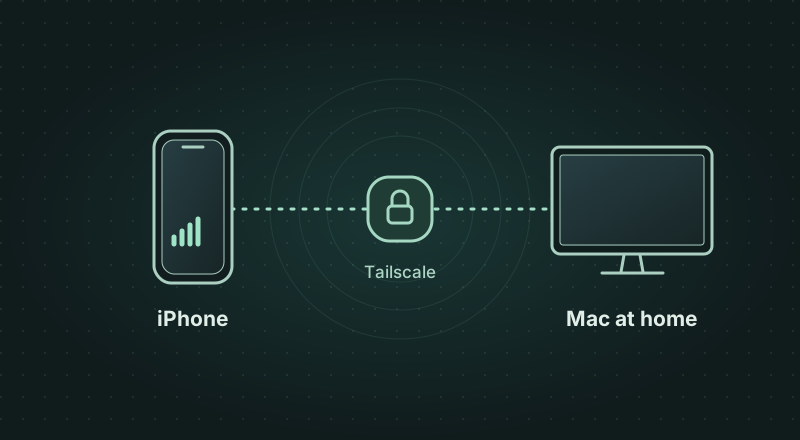
How your iPhone reaches your Mac
At home, Nimvo can reach your Mac at its Wi-Fi address. Away from home, Tailscale gives your devices a private network, called a tailnet. Your Mac has an address on that network that your iPhone can still reach after it leaves Wi-Fi. You can leave port forwarding off on your router.
Tailscale carries the connection directly between your devices when possible, or through an encrypted relay when the network requires it. Nimvo uses its own pairing key to decide which phone can see and control the shared screen. How Tailscale connects devices.
Put both devices on the same tailnet
You’ll need the Nimvo beta on an iPhone running iOS 26 or later and Nimvo Companion on a Mac running macOS 26 or later. If you’re waiting for access, join the Nimvo waitlist.
- On your Mac, install Tailscale, open it, approve its VPN configuration when prompted, and sign in. Tailscale for Mac.
- On your iPhone, open Tailscale, tap Get Started, allow the VPN configuration, and sign in with the same account. Tailscale for iPhone.
- Turn on Tailscale on both devices. Open the device list in Tailscale on your phone and find your Mac. If you have both a personal and a work tailnet, check that both devices are using the same one.
Save the Mac’s remote connection
- Open Nimvo Companion on your Mac. Under Permissions, allow Screen Recording to see the desktop and Accessibility to click or type. Choose your display, turn on Keep this Mac awake while sharing, then click Start sharing.
- Under Pair your iPhone, select Anywhere with Tailscale. A QR code and the Mac’s Tailscale address should appear. If you see setup instructions instead, connect Tailscale on the Mac and click Check again.
- On the iPhone, finish Nimvo’s onboarding and unlock or restore access. Tap Connect my Mac, then Scan Mac QR code. Allow camera access and scan the code shown by Nimvo Companion. If iOS asks for Local Network access, allow it.
Once the desktop appears, Nimvo saves the pairing in your iPhone’s Keychain. Keep the QR code private. If you already paired over home Wi-Fi, open Settings → Your Macs in Nimvo. Under the saved Mac’s name, Tailscale or Same Wi-Fi & Tailscale means the remote address is already saved. If it only says Same Wi-Fi, reconnect at home with Tailscale on and the updated companion running. If the label still shows only Wi-Fi, disconnect the phone to reveal the QR code on the Mac and scan the Tailscale code.
Make one click over cellular before you leave
- Leave the Mac online and sharing. On your iPhone, turn Wi-Fi off in Settings, check that cellular data is on, and leave Tailscale connected.
- Return to Nimvo. If the desktop doesn’t return on its own, tap Reconnect, or open Your Macs and tap Connect next to your saved Mac.
- Open Settings → Connection check in Nimvo. The session should say Connected via Tailscale. Go back to the desktop and click a menu on the Mac. Seeing it open confirms you can send input as well as receive the picture.
You can turn Wi-Fi back on after the test. When you leave, keep the Mac signed in, online, and sharing. Leave a MacBook plugged in with its lid open. Nimvo’s keep-awake setting prevents idle sleep while sharing. It can’t wake a sleeping Mac or unlock a locked session. If the Mac shuts down or you sign out, someone at the Mac will need to restore the session.
When it works at home but fails on the road
The Mac is missing from Tailscale
Open Tailscale on each device, check the account and tailnet, and confirm that both are connected. On a managed network, ask the administrator whether your iPhone is allowed to reach the Mac on the TCP port shown in Nimvo Companion’s manual pairing details.
Tailscale sees the Mac, but Nimvo won’t connect
Check the route saved under Your Macs. A Mac saved only as Same Wi-Fi needs its Tailscale address added using the pairing steps above. If the route is already saved, tap Connection check → Check connection. Nimvo Companion needs to be running and sharing in your signed-in Mac session. If the Mac is asleep, wake it there and reconnect.
I locked my iPhone and lost the picture
Unlock the phone, reopen Nimvo, and give it a moment to reconnect. If you tapped Disconnect yourself, open Your Macs and choose Connect. The saved pairing survives phone locks and network changes. A new QR scan is needed if you reset pairing on the Mac or forget the Mac on the phone.
I see the desktop, but clicks do nothing
The picture confirms that the network connection is working. On the Mac, check that Nimvo Companion shows Accessibility as allowed and Allow remote keyboard and pointer input is on under This session.
The screen works, but it’s slow on cellular
The Mac has to upload the picture as you use it. A weak home upload, a poor cellular signal, or a relayed Tailscale connection can make clicks feel late. Try a stronger connection on the phone and compare. Streaming the screen uses mobile data; disconnect Nimvo when you’re finished.