How to switch between Mac monitors from your iPhone
If your spreadsheet is open on the second monitor but your iPhone shows the first, you can switch the display Nimvo streams without disconnecting. Here’s how to find the sheet and make it readable on the phone.
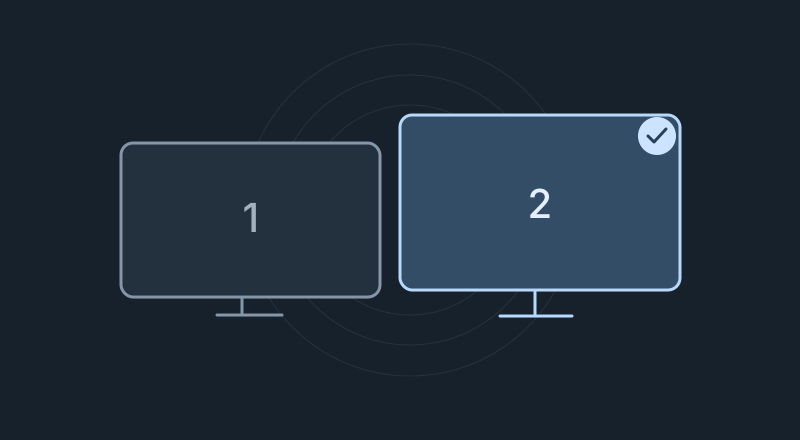
Choose a monitor from your iPhone
- Connect to the Mac in Nimvo. For a first connection, follow the Wi-Fi pairing guide.
- In the control bar below the Mac picture, tap the ellipsis (More controls), then Settings.
- Under Display, tap Monitor. Choose the display you want. Each entry shows its name and resolution, handy if you have a built-in display and an external monitor.
- Tap Done and wait for the new desktop to appear. Nimvo shows one monitor at a time and starts the new view at Fit so you can see all four corners.
To switch back, open the same picker and choose your first display. You stay paired throughout.
Read the spreadsheet on the second display
Once you can see the spreadsheet, pinch outward on the Mac picture to read a few cells. For a longer edit, open More controls and tap Focus window…. Under Windows on this display, choose the spreadsheet by its title. Tap the cell you want to work in.
Use Show desktop to see the surrounding windows again. Choosing another monitor also leaves window focus. If the spreadsheet lives on a third display, select that monitor before opening the window picker.
Find a window on another desktop
A Mac can have several virtual desktops, called Spaces, on the same monitor. If the monitor is right but the spreadsheet is on Desktop 2, swipe three fingers left or right on Nimvo’s trackpad to move between Spaces. Your Mac needs an adjacent Space and its shortcuts for switching desktops enabled.
If you’re unsure where you left the window, swipe three fingers up for Mission Control. If you recognize the window on another physical screen at your desk, use Settings → Monitor on the iPhone to switch to that screen.
When both screens look alike or a monitor is missing
If both monitors show the same content, check System Settings → Displays on your Mac. Mirroring puts the same desktop on both. Select the external display and use Use as to extend your desktop if you want separate workspaces. Apple’s display setup instructions.
If a monitor is missing, first check that macOS lists it in Displays. Then look in Nimvo Companion → This session → Display on the Mac. If the iPhone has no Monitor picker at all, check that it’s connected and running with a companion version that supports display switching.