How to control your Mac from your iPhone on Wi-Fi
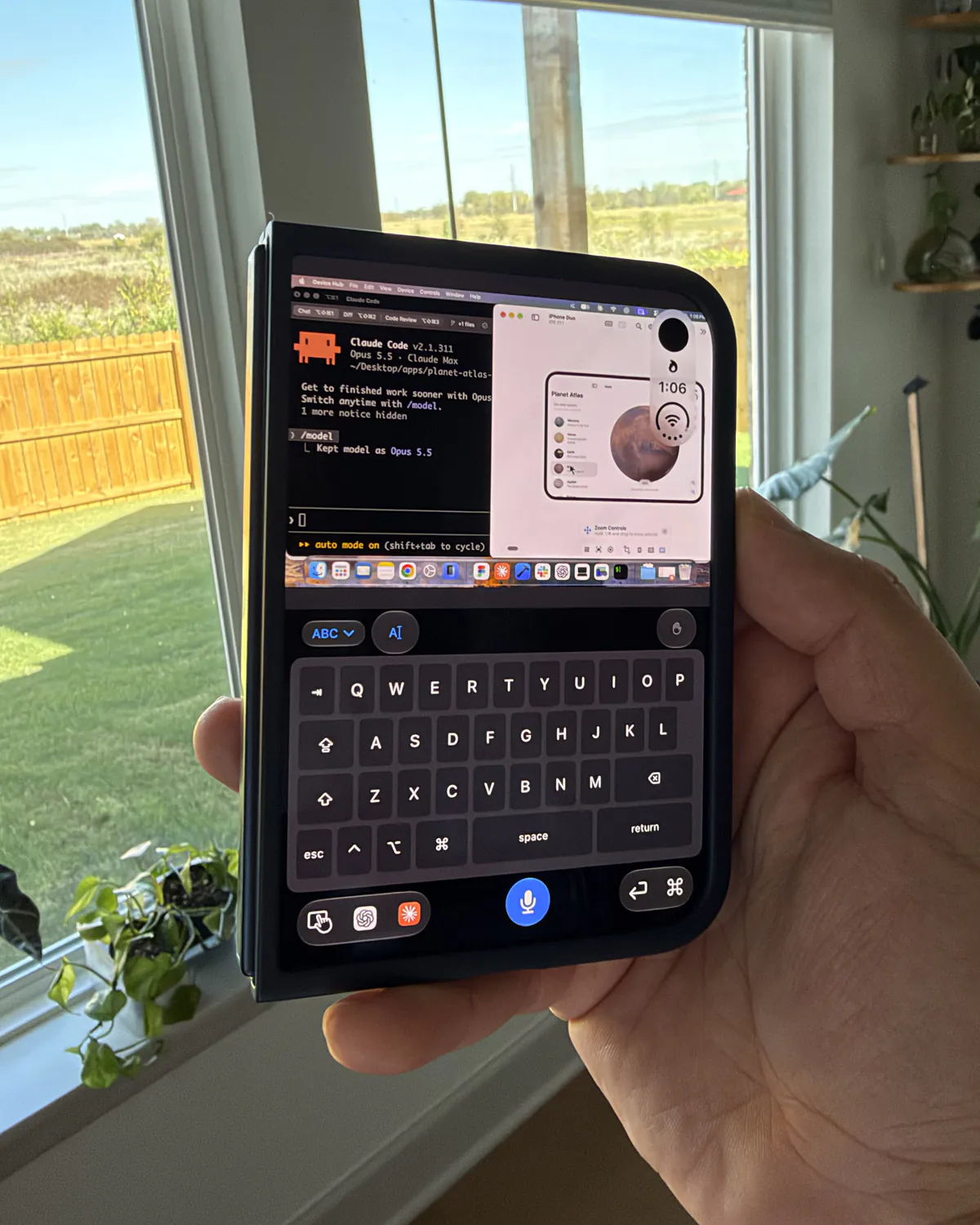
Start sharing on your Mac and scan its code with your iPhone. The top of your phone shows your desktop. The trackpad below it lets you point and click from the couch.
What you need
This walkthrough is for beta testers using Nimvo 1.1 (37) and Nimvo Companion 0.12.1 (26). A regular iPhone running iOS 26 or later works. Your Mac needs macOS 26 or later.
Connect your iPhone to your home Wi-Fi. Your Mac can use Wi-Fi or an Ethernet cable connected to the same router. Keep it awake and signed in. If you’re waiting for access, join the launch waitlist.
Pair your iPhone
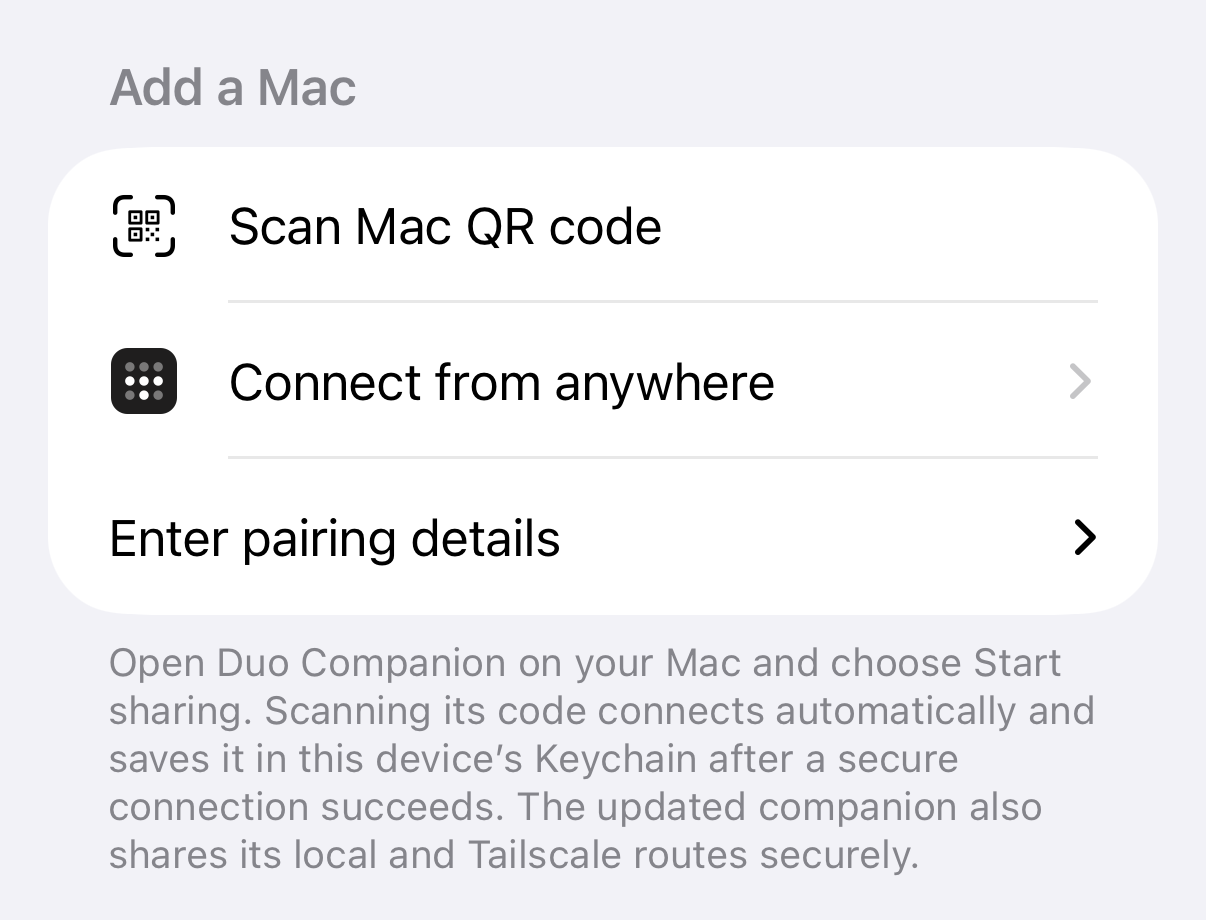
Open Nimvo on your iPhone. On first use, finish the introduction and unlock the app or restore your purchase. Tap Connect my Mac, then Scan Mac QR code. Give Nimvo camera access and point it at the code on your Mac.
Allow Local Network access when iOS asks. Once the scan succeeds, Nimvo connects and shows the display you chose. Next time, select your Mac from Your Macs.
Pause a video from the couch
Play a video on the shared Mac display. On your iPhone, slide one finger across the lower trackpad until the Mac pointer is over the video. When the player controls appear, move the pointer over Pause and tap the trackpad once. To resume, click Play the same way.
You can also tap the player control directly in the live Mac view. If it’s hard to hit, pinch outward on the picture first.
Troubleshooting
The code scans, but the Mac doesn’t appear
Check that Nimvo has Local Network access in iPhone Settings and the Mac is still sharing. Guest Wi-Fi can isolate devices even when the network name matches. Try the main home network.
I can see the desktop, but clicking does nothing
In Nimvo Companion, check that Accessibility shows as allowed. Under This session, turn on Allow remote keyboard and pointer input. If you just changed permissions, choose Check connection.
I can’t scan the QR code
On the Mac, open Show manual pairing details. On the iPhone, choose Enter pairing details, enter the host, port, and pairing key, then tap Connect. Keep that key private.