How to use your iPhone as a wireless trackpad for your Mac
If your Mac is plugged into the TV and its mouse is across the room, you can use your iPhone to pick the next photo. Nimvo shows the Mac on the top of your phone and gives you a trackpad below it. You can look at either screen while you move the pointer.
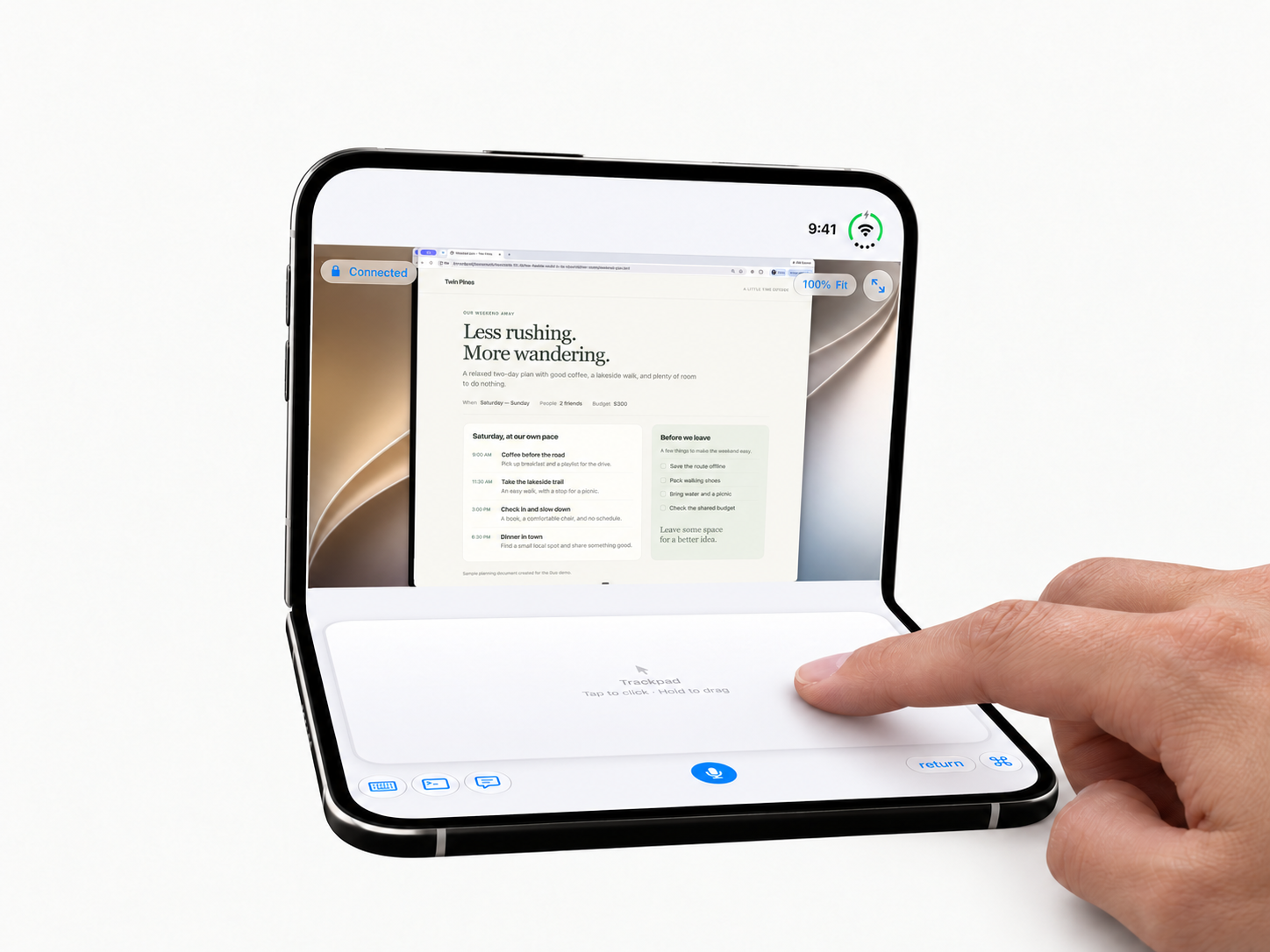
Bring up the trackpad on your iPhone
This walkthrough uses the Nimvo beta and Nimvo Companion on an awake Mac. A regular iPhone works. If you haven’t paired the devices yet, follow the Wi-Fi setup guide. Nimvo connects over your network; there’s nothing to pair in Bluetooth settings.
With the Mac desktop visible, look below it for the inset pad. If you see keys, tap the hand-on-a-rectangle button in the toolbar to show the trackpad. If the controls are hidden, tap the small handle first.
Open a photo without leaving the couch
- Slide one finger across the lower pad to move the Mac pointer over Finder in the Dock. Lift your finger, then tap once anywhere on the pad to click Finder.
- Point at a folder that contains photos and tap twice quickly on the pad to open it. A slow slide gives you finer control near a small target.
- To look through a long list, move the pointer over the list, then slide two fingers together to scroll. Double-tap the pad with one finger when the pointer is over the photo you want to open.
A tap on the trackpad clicks wherever the Mac pointer already is. A tap on the desktop picture above it clicks the spot you touched. Pinch outward on that picture if you need a closer look.
Right-click a file or move a window
To see a photo’s file size, point at it in Finder and tap the pad with two fingers at the same time. That opens the Mac’s shortcut menu. Point at Get Info and tap with one finger.
To move the Finder window out of the way, point at an empty part of its title bar and lift your finger. Rest one finger on the pad until you see the faint blue outline or feel a tap. Keep that finger still and slide a second finger to move the window. Lift either finger to drop it.
The timing distinguishes dragging from scrolling: put both fingers down together to scroll; put the second finger down after the hold to drag.
When you can see the Mac but can’t click
On the Mac, open Nimvo Companion. Under Permissions, check that Accessibility is allowed. Screen Recording lets Nimvo show you the desktop; Accessibility lets it send mouse input. Under This session, turn on Allow remote keyboard and pointer input. If you just changed permissions, choose Check connection and try a single click on Finder again.