Use a Bluetooth keyboard with your iPhone to type on your Mac
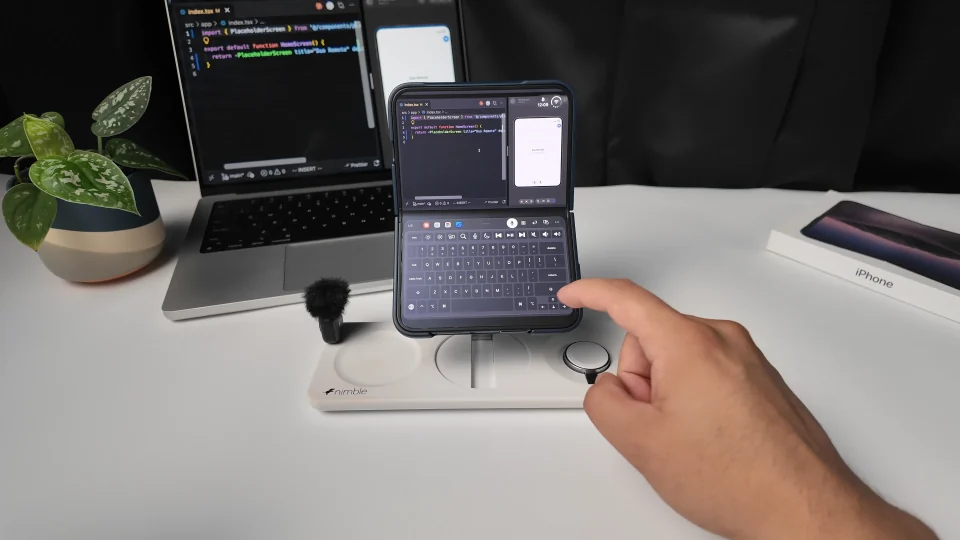
Set your iPhone beside a Bluetooth keyboard and you can edit a document that’s still open on your Mac. The keyboard connects to the phone. Nimvo sends your keystrokes to the Mac, and the phone stays free to use as a screen and trackpad.
Pair the keyboard with your iPhone
Charge your keyboard and put it in pairing mode. On your iPhone, open Settings → Bluetooth, turn Bluetooth on, and tap the keyboard’s name. For a standalone Apple Magic Keyboard, switch it on. If it’s still paired with another device, follow Apple’s Magic Keyboard pairing instructions to unpair it first.
Open a blank note in the iPhone’s own Notes app and type a word. If it appears, the Bluetooth connection works. Next, open Nimvo on the phone. If this is your first session in the beta, pair your iPhone with your Mac over Wi-Fi.
Make a small edit on the Mac
- In Nimvo, open your saved Mac and keep the trackpad visible. Physical keyboard input is on by default. To check, tap the More (…) button, open Settings, and look for Use physical keyboard under Controls. Close Settings before typing.
- Open a blank document in TextEdit on the Mac. Tap inside that document in the live Mac view, then type a short line on your physical keyboard. The text should appear in the Mac document.
- Hold Shift and press Left Arrow a few times to select the end of the line. Type a replacement word, then press Command-Z to undo the change. You can keep one hand on the phone’s trackpad without opening its on-screen keyboard.
Open Spotlight or switch apps on the Mac
iOS can keep system shortcuts such as Command-Space and Command-Tab. If Spotlight or the app switcher opens on the phone, the shortcut didn’t reach your Mac as intended.
For a Mac search, choose More → Spotlight on Mac, type an app name, and press Return. To switch to an open Mac window, choose More → All Mac windows, then tap the window you want in the live view. That opens Mission Control on the Mac. For an app you use often, the Apps and shortcuts grid also opens saved apps directly.
Recover keyboard input after switching away
Nimvo pauses forwarding while you’re in its settings or text editor, while you’re dictating, and when you leave the app. Return to the live workspace, release any keys you were holding, and select More → Resume physical keyboard if it appears. Tap the target field on the Mac again.
If the phone’s Notes app still accepts typing but the Mac doesn’t, open More → Settings → Controls → Input check. Check whether the keyboard is detected, enable Show input check, then close Settings and press a key. Rising press and release counts tell you Nimvo sees the keyboard. If neither typing nor clicking works on the Mac, check Nimvo Companion’s Accessibility permission and its session switch for remote keyboard and pointer input.
If letters arrive but punctuation is wrong, check the Mac’s active keyboard layout. Nimvo forwards physical key positions; the layout selected on the Mac determines which character appears.