How to use Claude Code on your Mac from your iPhone
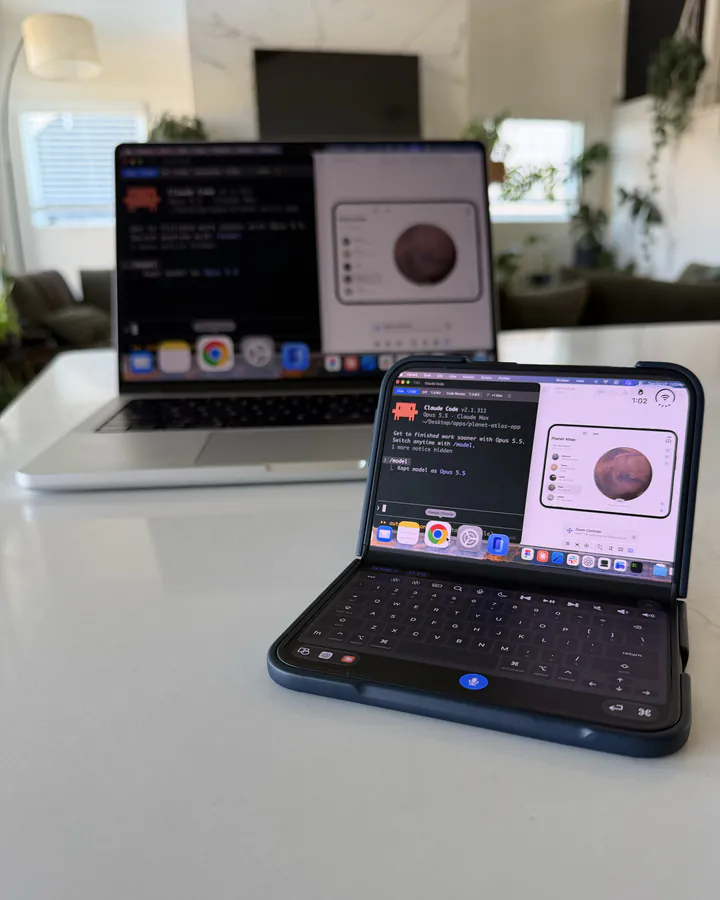
When Claude Code is working on your Mac, its Remote Control feature lets you continue the conversation from your iPhone. If you also want to try the change in a local browser, Nimvo lets you use the same terminal and browser windows you left open.
For the conversation alone, use Claude Code Remote Control
At your Mac, type /remote-control inside the existing Claude Code session. Follow the prompt, then open the session link on your iPhone while signed in to the same Claude account. You can read Claude’s progress and reply from the phone while the project still runs on your Mac. Leave the terminal process running.
Anthropic lists eligible accounts and organization settings in its Remote Control instructions. If this does everything you need, you can stop here. The steps below use Nimvo when you want your hands on the Mac desktop too.
Leave the terminal and a local preview open
In the Nimvo beta, pair the iPhone with your Mac and start sharing the display that has your terminal. For example, if Claude is fixing a checkout button, open your development site in a Mac browser and leave the relevant terminal tab selected. Keep the Mac awake and signed in.
For access away from home, set up Tailscale and test over cellular before you leave. There’s no need to expose the development server: you’ll be clicking the browser on the Mac, so its localhost address still points to the right machine.
Read the actual terminal prompt before you type
- Connect to the saved Mac in Nimvo. Tap the Terminal, iTerm, or editor window where you started Claude Code to bring it forward. If another window covers it, tap the All Mac windows key in the toolbar and choose it there. Opening the Claude desktop app would take you to a different place.
- To read the last few lines, drag the slim magnifier on the edge of the Mac picture. It zooms around the Mac pointer and follows it as you move. You can also pinch outward on the live picture; double-tap the magnifier to see the whole screen again.
- If Claude is asking for permission to run a command, read the command and its target, then use the choices shown in the terminal. For a normal follow-up, tap inside the active terminal tab, open Nimvo’s keyboard, and type a message such as “Which file changed, and how can I check the button?” Check the text on screen before pressing Return.
Try the change in the Mac browser
Tap the browser window with your local preview, or find it with All Mac windows. Reload the page, then tap the changed control in the live picture or click it with the trackpad. For a checkout flow, use test data. If the button looks right but doesn’t respond, that’s a much more useful observation to give Claude than “it doesn’t work.”
Return to the same terminal window to send that observation. If a second window or dialog opens out of view, tap All Mac windows to find it. A missing terminal tab usually means you’re looking at another tab or window; check those before starting a new Claude session.